> For the complete documentation index, see [llms.txt](https://godomall-help.nhn-commerce.com/llms.txt). Markdown versions of documentation pages are available by appending `.md` to page URLs; this page is available as [Markdown](https://godomall-help.nhn-commerce.com/beginner/design/basic-setting/skin/main-page.md).
# 메인 꾸미기
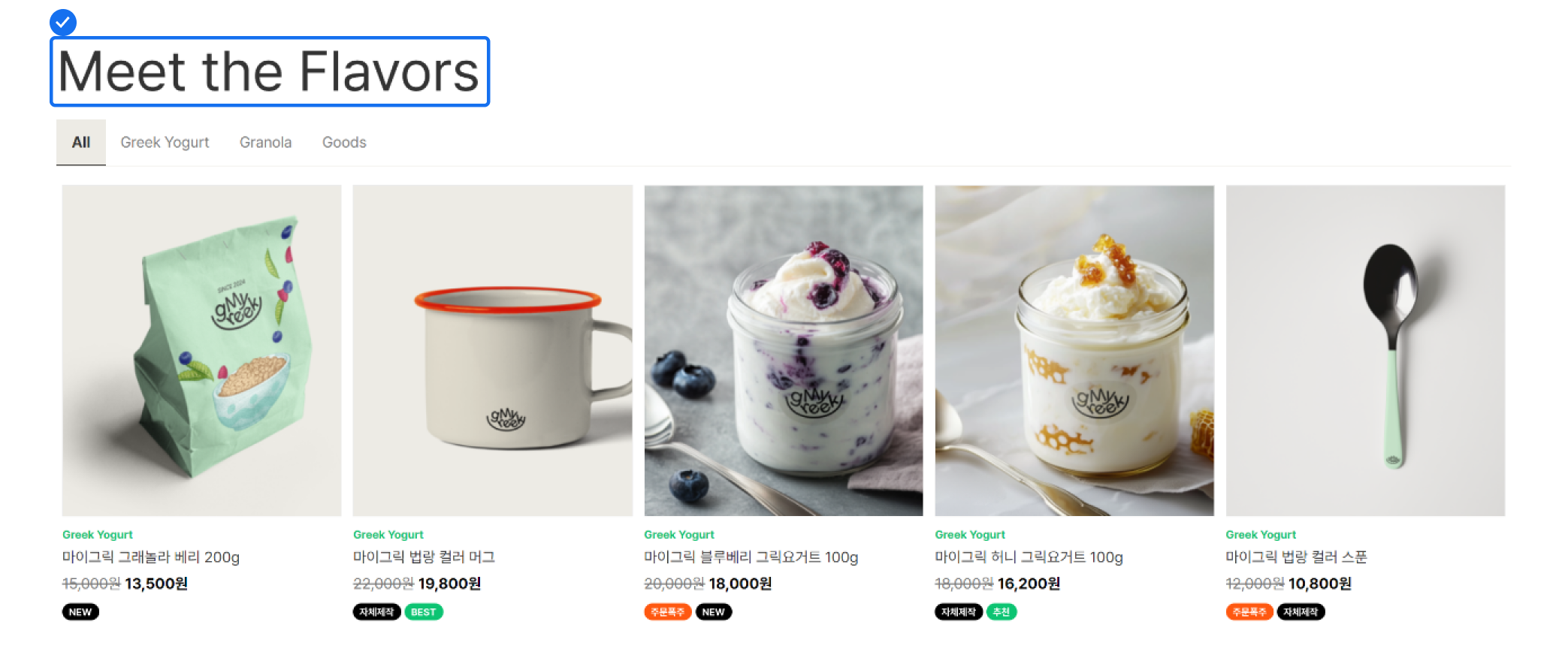
### • 타이틀 변경
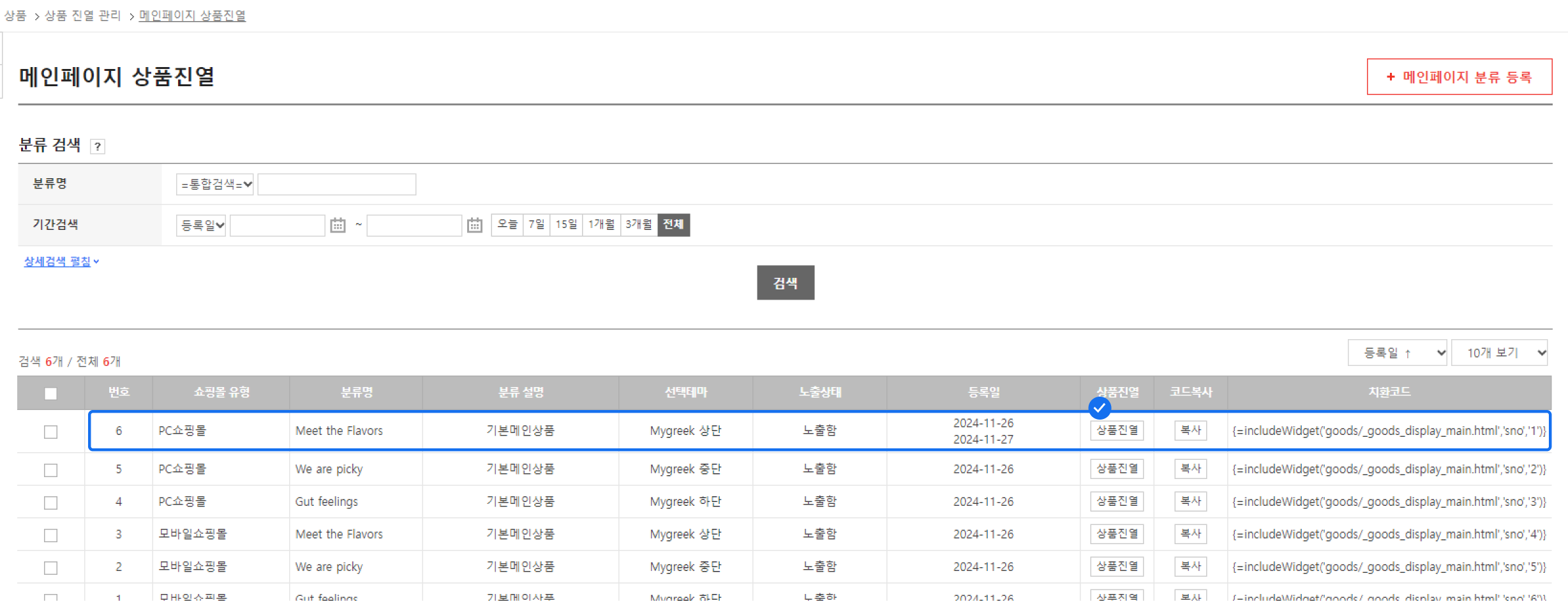
* \[어드민 > 상품 > 상품 진열 관리 > 메인페이지 상품진열]페이지에서 수정할 수 있어요.
* 변경을 원하는 상품 진열을 선택해요.
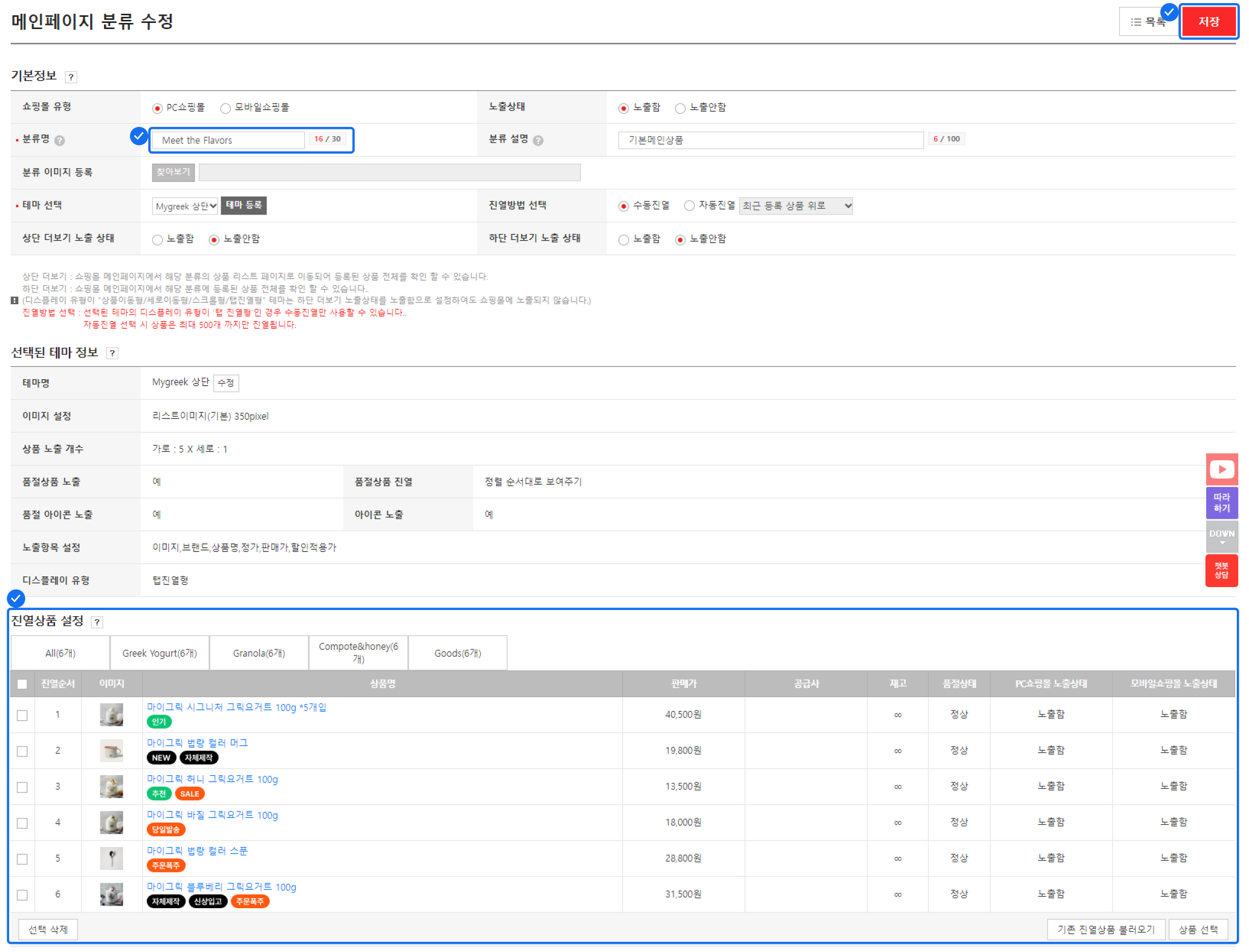
* 메인페이지 분류 수정 페이지의 기본 정보에서 분류명을 변경할 수 있어요.
* 메인페이지 분류 수정 페이지에서 영역별 노출 상품도 수정할 수 있어요.
* 모든 설정이 끝났다면 \[저장]을 꼭 클릭해 주세요.
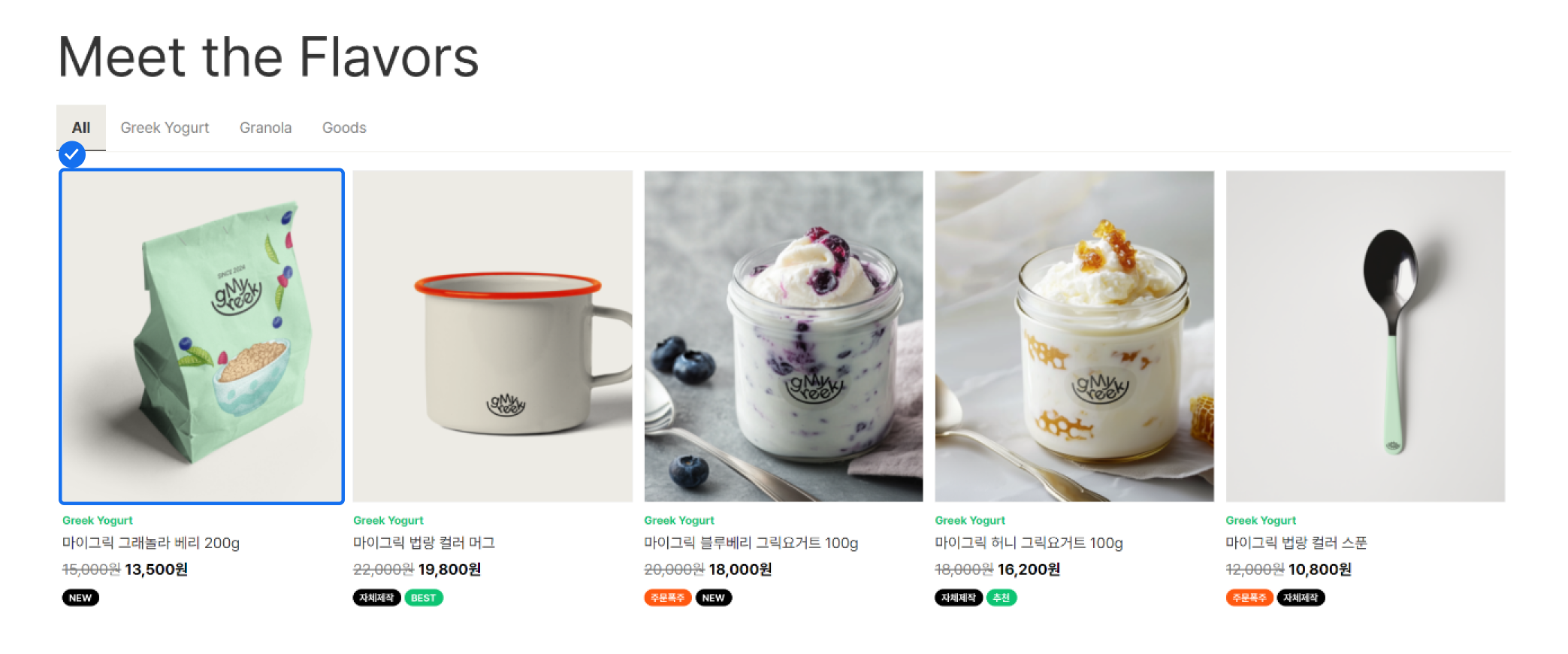
### • 이미지 사이즈 변경
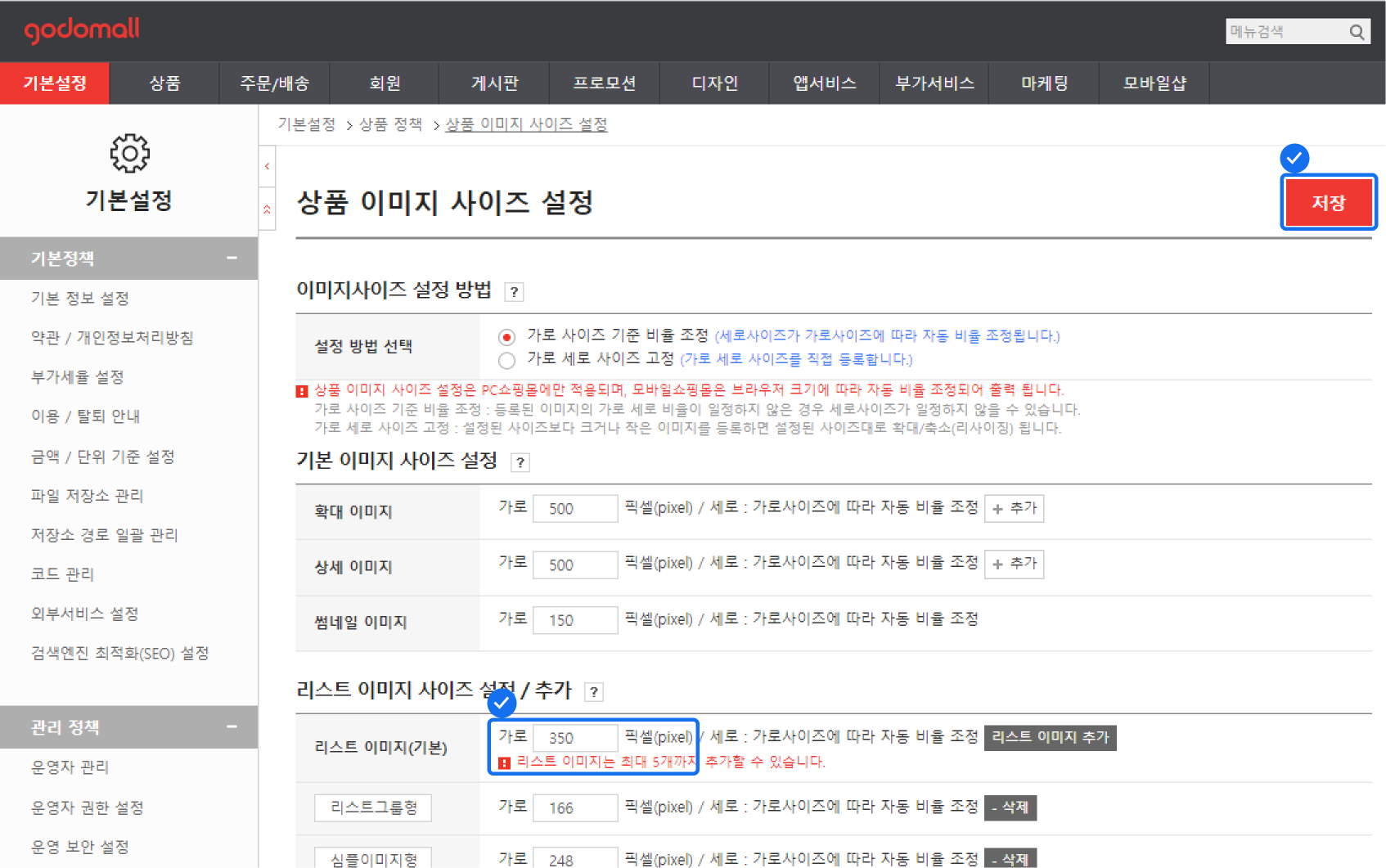
* \[어드민 > 기본설정 > 상품 정책 > 상품 이미지 사이즈 설정] 페이지에서 \
리스트 이미지 사이즈 설정을 변경할 수 있어요.
마이그릭 사이즈: 350
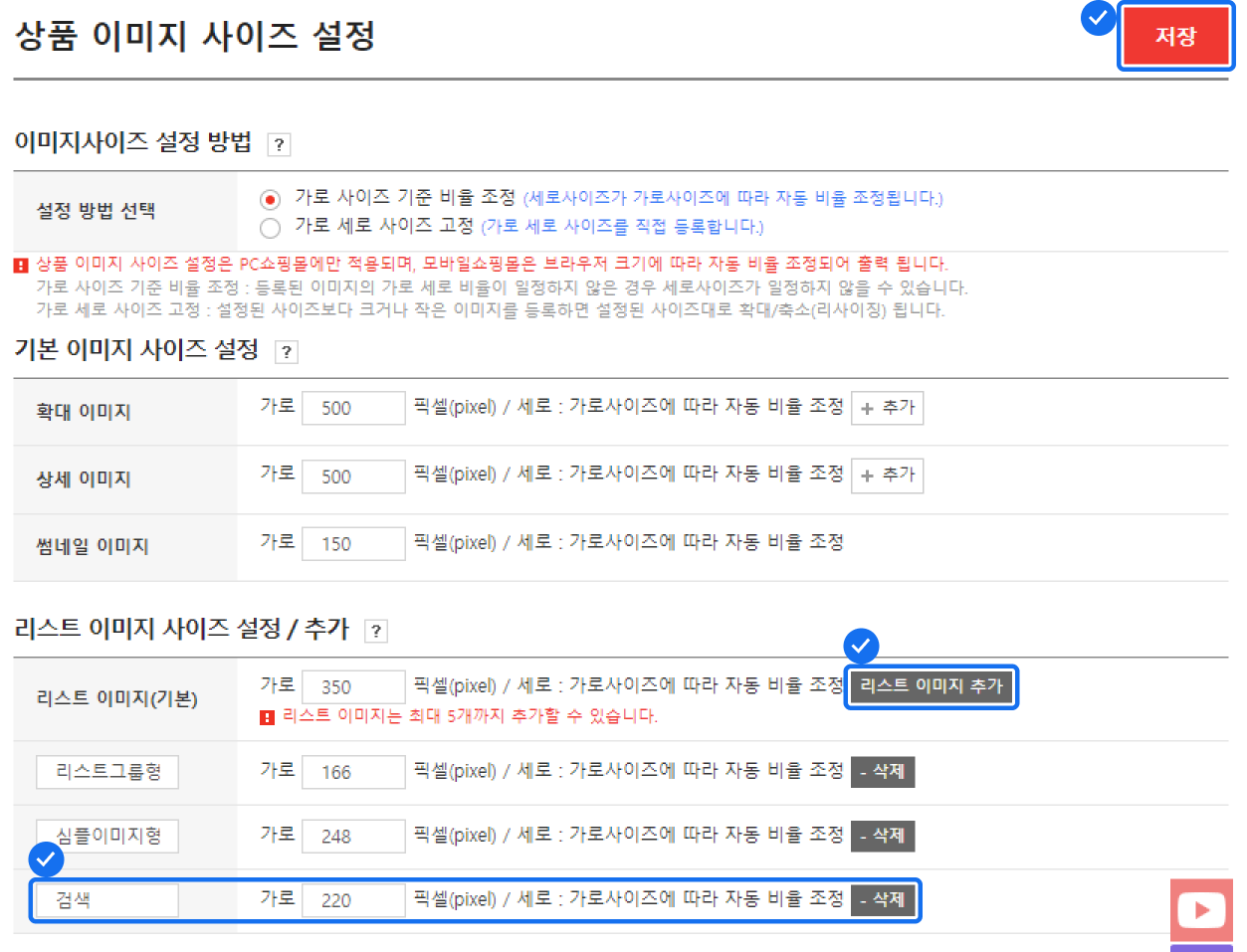
* #### 원하는 사이즈가 없다면, \[리스트 이미지 추가] 버튼 클릭 후 새로운 사이즈를 등록할 수 있어요.
* 모든 설정이 끝났다면 \[저장]을 꼭 클릭해 주세요.
### • 테마 수정
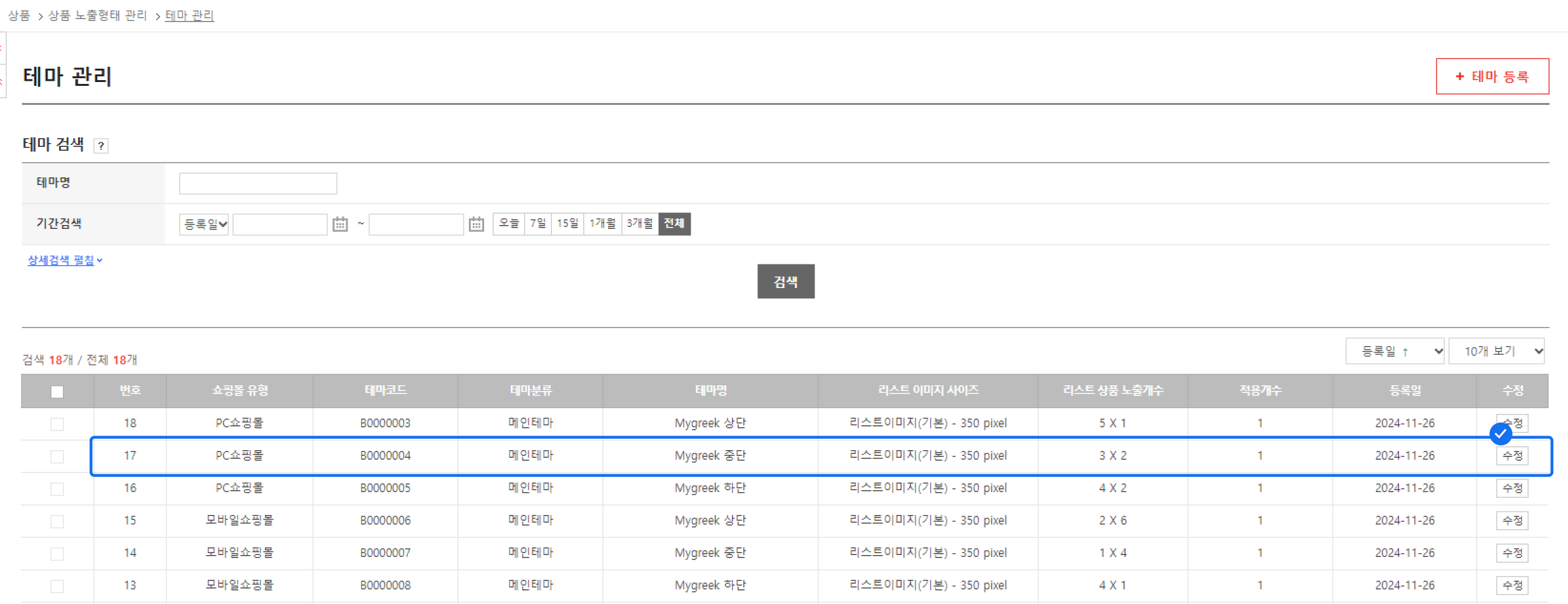
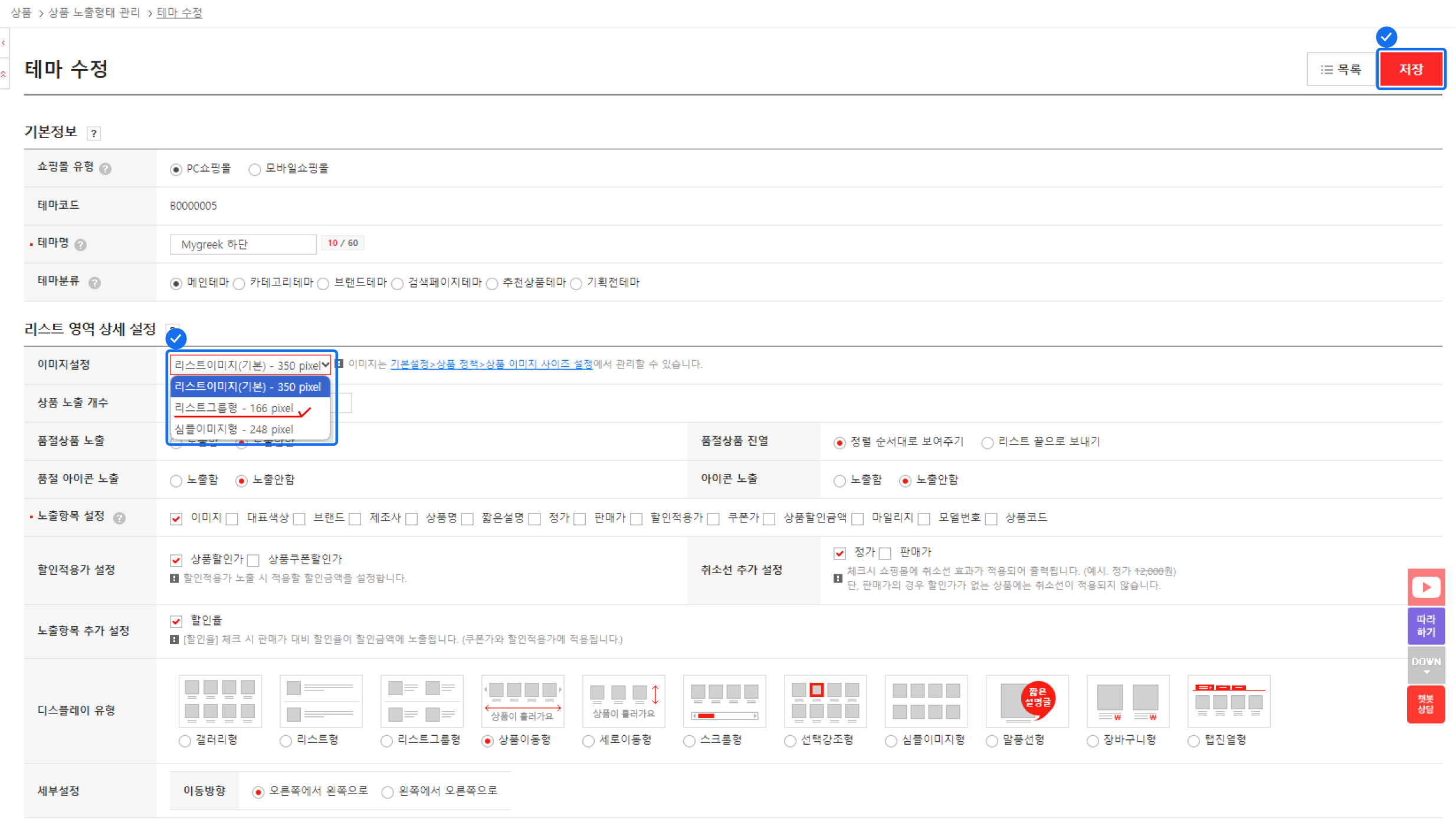
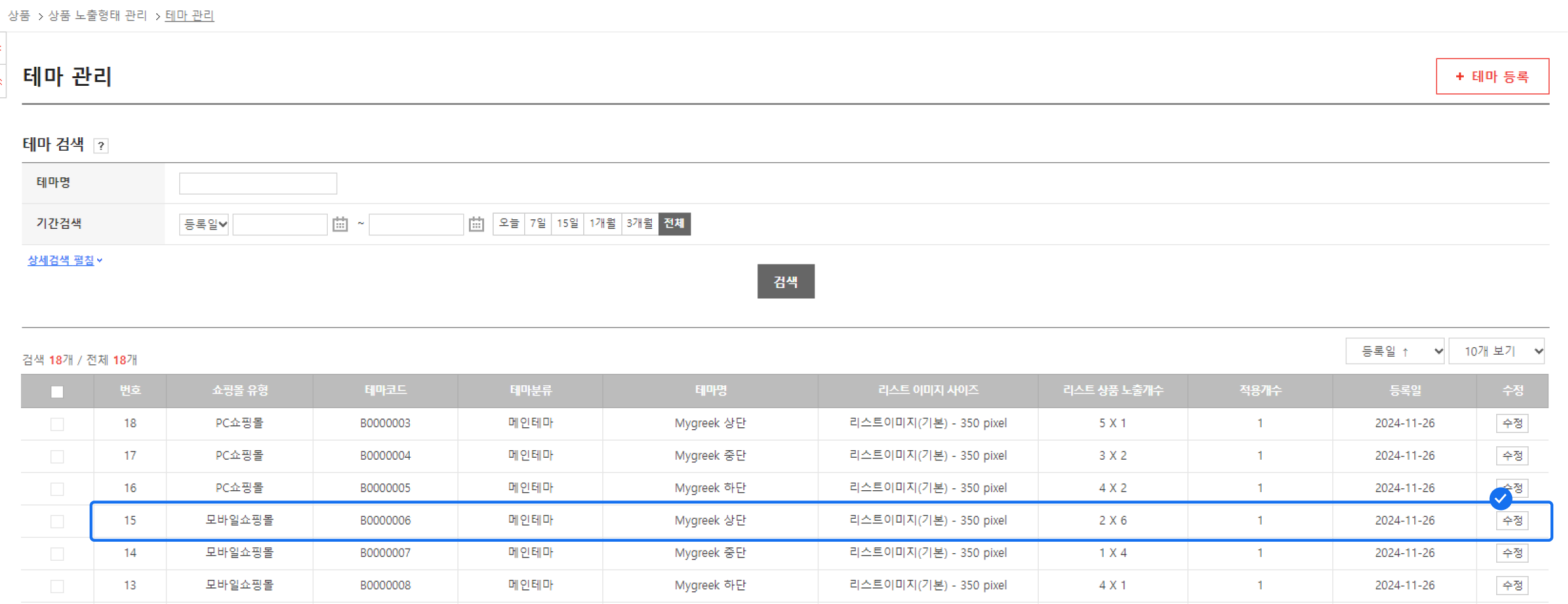
* \[어드민 > 상품 > 상품 노출형태 관리 > 테마관리] 페이지에서 테마를 선택해요.
* 리스트 영역 상세 설정에서 이미지 설정 사이즈를 변경할 수 있어요.
마이그릭 사이즈: 리스트그룹형 - 166 pixel
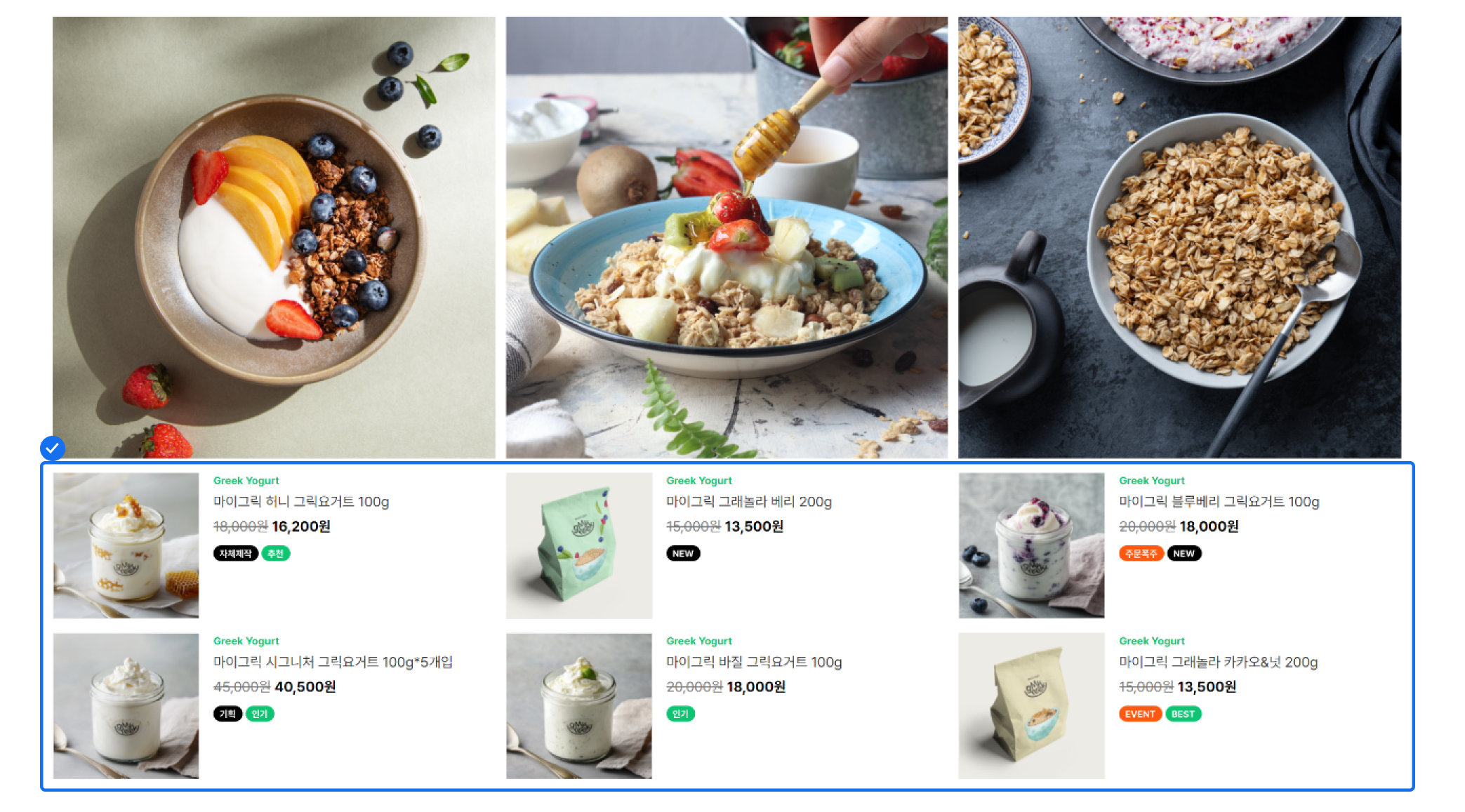
* 테마 수정 페이지에서 내 쇼핑몰에 맞게 메인 상품 리스트 유형을 변경할 수 있어요.
* 모든 설정이 끝났다면 \[저장]을 꼭 클릭해 주세요.
### • 탭 변경
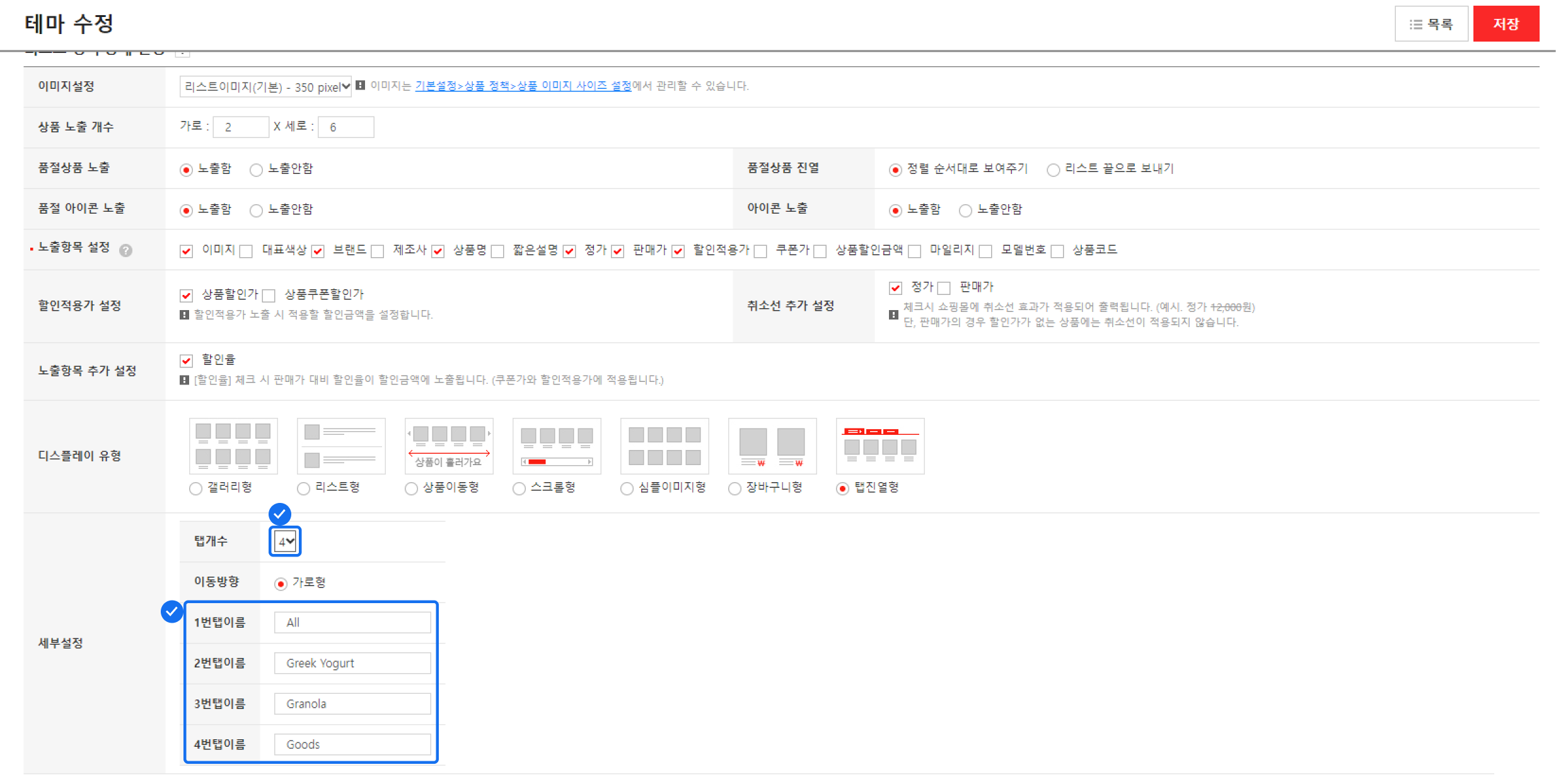
* \[어드민 > 상품 > 상품 노출형태 관리 > 테마관리] 페이지에서 테마를 선택해요.
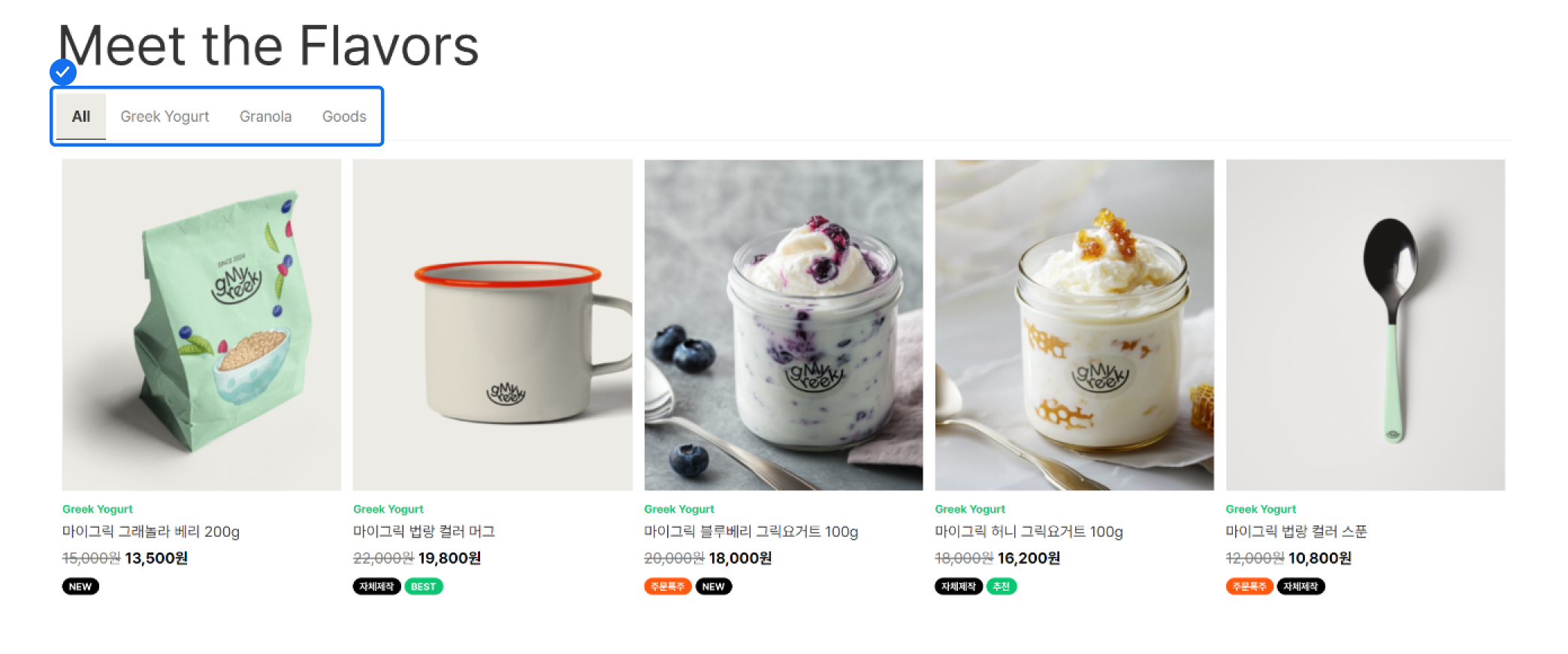
* 세부 설정에서 탭개수와 탭 이름을 변경할 수 있어요.
마이그릭 탭개수: 4개
* 테마 수정 페이지에서 내 쇼핑몰에 맞게 메인 상품 리스트 유형을 변경할 수 있어요.
* 모든 설정이 끝났다면 \[저장]을 꼭 클릭해 주세요.
---
# Agent Instructions
This documentation is published with GitBook. GitBook is the documentation platform designed so that both humans and AI agents can read, navigate, and reason over technical content effectively. Learn more at gitbook.com.
## Querying This Documentation
If you need additional information that is not directly available in this page, you can query the documentation by asking a question.
Perform an HTTP GET request on the following URL with the `ask` and `goal` query parameters:
```
GET https://godomall-help.nhn-commerce.com/beginner/design/basic-setting/skin/main-page.md?ask=&goal=
```
`ask` is the immediate question: it should be specific, self-contained, and written in natural language.
`goal` is what the user is ultimately trying to achieve, the reason they need the answer. Sharing it helps GitBook give you a better, more relevant answer. A goal is most helpful when it describes the outcome the user wants rather than restating the question. For example, with `ask=how do I create an API token`, a goal like `automate deployments from our CI pipeline` lets GitBook tailor the answer to that use case.
The response will contain a direct answer to the question and relevant excerpts and sources from the documentation.
Use this mechanism when the answer is not explicitly present in the current page, you need clarification or additional context, or you want to retrieve related documentation sections.