> For the complete documentation index, see [llms.txt](https://godomall-help.nhn-commerce.com/llms.txt). Markdown versions of documentation pages are available by appending `.md` to page URLs; this page is available as [Markdown](https://godomall-help.nhn-commerce.com/beginner/design/freeskin/honglife/mobile-guide.md).
# Honglife\_Mobile 스킨 가이드
> 공통
컬러 코드 변경하기
1. Honglife 스킨에 적용되어 있는 기본 컬러 코드는 **#c62323**이다.
2. \[관리자 > 모바일샵 > 디자인 스킨 리스트] 메뉴에 접속한다.
3. **스타일시트/CSS 변경**
* 좌측 하단 폴더 트리 내 \[스타일시트/CSS]를 더블 클릭하여 아래와 같이 표시된 스타일 시트를 오픈한다.
* common.css를 더블 클릭하여 *gd\_common.css* 파일을 연다.
4. 화면 최상단에서 `--primary-default`의 값을 원하는 포인트 컬러 코드로 변경할 수 있다. 아래는 스킨에서 자주 사용하는 값들을 변수화 하였다. 해당 값을 변경하면 일괄적으로 적용될 것이다.
```css
:root {
--primary-default: #c62323; /* 포인트 컬러 */
--primary-hover: #990416; /* 포인트 컬러 hover */
--secondary-default: #264642; /* 서브 컬러 */
--neutrals-gray: #f5f5f5;
--neutrals-dark: #000;
--font-size: 12px; /* 기본 폰트 사이즈 */
--font-family: "Pretendard Variable"; /* 기본 폰트 명 */
--font-regular: 400;
--font-medium: 500;
--font-bold: 700;
}
```
HEADER 스타일 변경하기

파일명 : css/gd\_layout.css
1. 상단 레이아웃의 스타일을 변경할 수 있다.
```
#header_wrap header {
width: 100%;
min-width: 320px;
background: #990416; // 배경색 변경
z-index: 300;
}
```
2. 햄버거 메뉴 아이콘을 변경할 수 있다.
```
/* 햄버거 메뉴, 검색아이콘, 마이페이지, 장바구니 아이콘 공통 스타일 */
#header_wrap header .header_box .side_menu span,
#header_wrap header .header_box .top_search span,
#header_wrap header .header_box .mypage span,
#header_wrap header .header_box .cart span {
display: inline-block;
width: 24px; // 너비
height: 24px; // 높이
font-size: 0;
background-size: 100%;
background-repeat: no-repeat;
background-position: center;
vertical-align: top;
}
#header_wrap header .header_box .side_menu span {
background-image: url('../img/icon/icon_menu.png'); // 햄버거 메뉴 아이콘 이미지 변경
}
```
3. 검색 아이콘 이미지를 변경할 수 있다.
```
#header_wrap header .header_box .top_search span {
background-image: url('../img/icon/icon_search.png');
}
```
4. 마이페이지 이미지를 변경할 수 있다.
```
#header_wrap header .header_box .mypage span {
background-image: url('../img/icon/icon_mypage.png');
}
```
5. 장바구니 이미지를 변경할 수 있다.
```
#header_wrap header .header_box .cart span {
background-image: url('../img/icon/icon_cart.png');
}
```
6. 장바구니 카운트 스타일을 변경할 수 있다.
````
#header_wrap header .header_box .cart_count {
position: absolute;
top: -6px;
right: -8px;
display: flex;
align-items: center;
justify-content: center;
padding: 0px 4px;
min-width: 10px;
border-radius: 10px;
color: #fff;
background: var(--primary-default);
font-size: 10px;
}
HEADER 스타일 변경하기
파일명 : css/gd_layout.css
1. 상단 레이아웃의 스타일을 변경할 수 있다.
```
#header_wrap header {
width: 100%;
min-width: 320px;
background: #990416; // 배경색 변경
z-index: 300;
}
```
2. 햄버거 메뉴 아이콘을 변경할 수 있다.
```
/* 햄버거 메뉴, 검색아이콘, 마이페이지, 장바구니 아이콘 공통 스타일 */
#header_wrap header .header_box .side_menu span,
#header_wrap header .header_box .top_search span,
#header_wrap header .header_box .mypage span,
#header_wrap header .header_box .cart span {
display: inline-block;
width: 24px; // 너비
height: 24px; // 높이
font-size: 0;
background-size: 100%;
background-repeat: no-repeat;
background-position: center;
vertical-align: top;
}
#header_wrap header .header_box .side_menu span {
background-image: url('../img/icon/icon_menu.png'); // 햄버거 메뉴 아이콘 이미지 변경
}
```
3. 검색 아이콘 이미지를 변경할 수 있다.
```
#header_wrap header .header_box .top_search span {
background-image: url('../img/icon/icon_search.png');
}
```
4. 마이페이지 이미지를 변경할 수 있다.
```
#header_wrap header .header_box .mypage span {
background-image: url('../img/icon/icon_mypage.png');
}
```
5. 장바구니 이미지를 변경할 수 있다.
```
#header_wrap header .header_box .cart span {
background-image: url('../img/icon/icon_cart.png');
}
```
6. 장바구니 카운트 스타일을 변경할 수 있다.
```
#header_wrap header .header_box .cart_count {
position: absolute;
top: -6px;
right: -8px;
display: flex;
align-items: center;
justify-content: center;
padding: 0px 4px;
min-width: 10px;
border-radius: 10px;
color: #fff;
background: var(--primary-default);
font-size: 10px;
}
```
````
사이드 메뉴 스타일 변경하기

파일명 : *css/gd\_layout.css*
1. 언어 타이틀 스타일을 수정할 수 있다.
```css
.nav_language .tit {
display: table-cell;
width: 30%;
font-size: 15px;
padding: 13px 15px 13px 15px;
color: #262626;
font-weight: bold;
box-sizing: border-box;
}
```
2. \[Q\&A], \[최근본상품], \[찜리스트] 아이콘과 텍스트 스타일을 변경할 수 있다.
```css
/* 텍스트 */
.nav_link ul li a {
display: block;
padding: 36px 0 0 0;
font-size: 13px;
color: #888;
}
/* Q&A */
.nav_link ul li:nth-child(1) a {
background: url(../img/icon/icon_qna.svg) no-repeat center 3px;
background-size: 33px 30px;
}
/* 최근본상품 */
.nav_link ul li:nth-child(2) a {
background: url(../img/icon/icon_prd_latest.svg) no-repeat center 4px;
background-size: 33px 30px;
}
/* 찜리스트 */
.nav_link ul li:nth-child(3) a {
background: url(../img/icon/icon_lnb_heart.svg) no-repeat center 4px;
background-size: 33px 30px;
}
```
3. \[카테고리], \[브랜드] 버튼의 스타일을 변경할 수 있다.
```css
/* 버튼 기본 스타일 */
.nav_tabmenu_box .nav_tabmenu li span {
display: block;
padding: 10px 0 10px 0;
background: #e8e8e8;
color: #acacac;
}
/* 활성화된 상태일 때 */
.nav_tabmenu_box .nav_tabmenu li.on span {
background: var(--primary-default);
color: #fff;
font-weight: bold;
}
```
4. 카테고리 트리 메뉴 아이템의 스타일을 변경할 수 있다.
```css
.category_side > li a {
position: relative;
display: block;
padding: 12px 0 12px 0;
font-size: 16px;
color: #262626;
}
```
5. \[커뮤니티] 타이틀과 공통 게시판 링크 스타일을 변경할 수 있다.
```css
/* 커뮤니티 타이틀 */
.nav_community_box .comm_tit {
padding: 10px 0 10px 10px;
margin: 0 10px 0 6px;
font-size: 18px;
color: #272727;
font-weight: bold;
border-bottom: 0px solid #000000;
}
/* 공통 게시판 링크 */
.nav_community_box .board_cate li a {
display: block;
padding: 6px 0;
font-size: 14px;
color: #1c1c1c;
}
```
6. 사이드 메뉴 닫기 버튼의 스타일을 지정할 수 있다.
```css
#wrap nav .left_close {
position: fixed;
top: 20px;
left: 310px;
width: 29px;
height: 29px;
background: url(../img/icon/icon_left_x.png) no-repeat center;
background-size: 100%;
z-index: 1002;
}
```
푸터(하단 공통) 스타일 변경하기

파일명 : *css/gd\_layout.css*
1. 푸터 메뉴의 스타일을 변경할 수 있다.
```css
#footer footer .ft_menu li a {
display: block;
font-size: 12px;
font-weight: 700;
}
```
2. \[고객센터], \[은행계좌 안내] 타이틀의 스타일을 변경할 수 있다.
```css
.main_info dl dt > span {
font-weight: 700;
font-size: 12px;
}
```
4. 푸터 정보 영역과 카피라이트 텍스트의 스타일을 변경할 수 있습니다.
```css
/* 푸터 정보 */
#footer footer .ft_info2_box .ft_address {
padding: 0px;
text-align: left;
font-size: 12px;
word-break: keep-all;
}
/* 카피라이트 */
#footer footer .ft_copy {
font-size: 9px;
text-align: left;
font-style: normal;
margin-block: 24px;
}
```
> 메인
상품 진열 타이틀 변경하기

1. 상품 진열 타이틀의 스타일을 수정할 수 있다.
```css
/* css/main/main.css */
._goods_display_main h3 {
margin-top: 0;
font-size: 32px;
font-weight: 800;
line-height: 38px;
}
```
2. 더보기 버튼 스타일을 수정할 수 있다.
```css
/* 하단 더보기 버튼 */
.main_more_btn {
display: block;
width: calc(100%);
padding: 12px 8px;
margin: 0 auto;
text-align: center;
background: #000;
font-size: 14px;
/* border: 1px solid #9f9f9f; */
color: #fff;
box-sizing: border-box;
}
/* 상단 더보기 버튼 */
.main_more_btn2 {
display: inline-flex;
align-items: center;
justify-content: center;
padding: 0 10px;
block-size: 20px;
inline-size: auto;
background-color: #343434;
border-radius: 10px;
gap: 5px;
font-size: 10px;
font-weight: var(--font-medium);
}
```
> 상품 상세
상품 정보 스타일 변경하기

파일명 : *css/goods/goods.css*
1. 브랜드 스타일을 변경할 수 있다.
```css
.goods_view .detail_info .detail_info_top .brand {
padding: 0 0 2px 0;
color: #666;
font-size: 13px;
}
```
2. 상품명 스타일을 변경할 수 있다.
```css
.goods_view .detail_info h3 {
font-size: 18px;
color: #333333;
word-break: break-all;
}
```
3. 가격 정보 스타일을 변경할 수 있다.
```css
.goods_view .detail_info .detail_info_top .price_box .price {
font-size: 20px;
color: #333333;
}
```
4. \[공유하기], \[찜하기] 버튼 스타일을 수정할 수 있다.
```css
/* 공유하기 버튼 */
.goods_view .share_btn_box ul li.d_share button {
padding-left: 25px;
background: url(../../img/icon/icon_share.png) no-repeat left center;
background-size: 19px;
}
/* 찜하기 버튼 */
.goods_view .share_btn_box ul li.d_wish button {
padding-left: 25px;
background: url(../../img/icon/icon_heart.png) no-repeat left center;
background-size: 19px;
}
```
상품 상세 - 탭 메뉴 스타일 변경하기
 파일명 : *css/goods/goods.css* 탭 메뉴 박스 스타일을 수정할 수 있다.
```css
.goods_view .detail_btm_tab_menu_box {
position: relative;
width: 100%;
height: 60px;
border-top: 10px solid #f9f9f9;
border-bottom: 1px solid #e2e2e2;
box-sizing: border-box;
}
/* 탭이 선택되어졌을 때 */
.goods_view .detail_btm_tab_menu_box .detail_btm_tab_menu ul li.selected {
padding: 1px 0 0 0;
height: 49px;
border-bottom: 2px solid #000;
}
```
파일명 : *css/goods/goods.css* 탭 메뉴 박스 스타일을 수정할 수 있다.
```css
.goods_view .detail_btm_tab_menu_box {
position: relative;
width: 100%;
height: 60px;
border-top: 10px solid #f9f9f9;
border-bottom: 1px solid #e2e2e2;
box-sizing: border-box;
}
/* 탭이 선택되어졌을 때 */
.goods_view .detail_btm_tab_menu_box .detail_btm_tab_menu ul li.selected {
padding: 1px 0 0 0;
height: 49px;
border-bottom: 2px solid #000;
}
```
상품 상세 - 기본 정보 탭 컨텐츠 스타일 변경하기
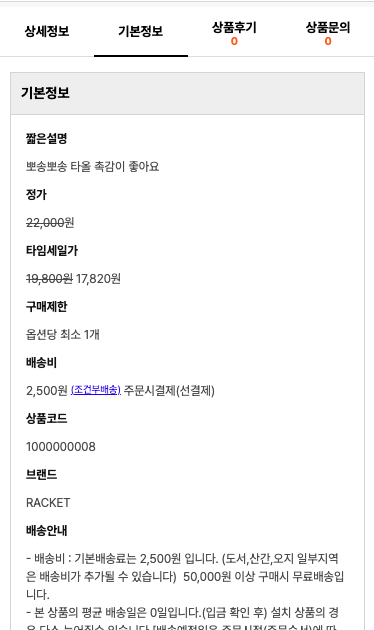 파일명 : *css/goods/goods.css* 서브 타이틀과 디스크립션의 스타일을 수정할 수 있다.
```css
/* 서브 타이틀 */
.openblock_content dl dt {
padding: 5px 5px 5px 5px;
white-space: normal;
font-weight: bold;
color: #111111;
}
/* 디스크립션 */
.openblock_content dl dd {
padding: 5px 5px 5px 5px;
color: #555555;
vertical-align: top;
}
```
파일명 : *css/goods/goods.css* 서브 타이틀과 디스크립션의 스타일을 수정할 수 있다.
```css
/* 서브 타이틀 */
.openblock_content dl dt {
padding: 5px 5px 5px 5px;
white-space: normal;
font-weight: bold;
color: #111111;
}
/* 디스크립션 */
.openblock_content dl dd {
padding: 5px 5px 5px 5px;
color: #555555;
vertical-align: top;
}
```
상품 상세 - �상품후기 탭 컨텐츠 스타일 변경하기
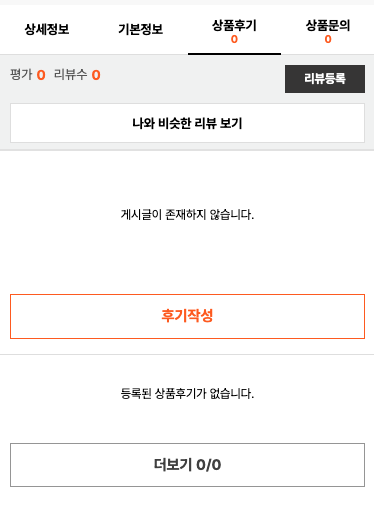 파일명 : *css/goods/goods.css*
1. 평가, 리뷰수 정보의 스타일을 변경할 수 있다.
```css
/* 평가, 리뷰수 라벨 */
.plus_review_container .plus_review_top_box dl dt {
display: table-cell;
font-size: 13px;
color: #606060;
vertical-align: middle;
}
/* 평가수, 리뷰수 숫자 */
.plus_review_container .plus_review_top_box dl dd {
display: table-cell;
padding-inline: 4px 8px;
font-weight: bold;
font-size: 14px;
color: var(--primary-default);
vertical-align: middle;
}
```
2. 플러스 리뷰 > \[리뷰등록], \[나와 비슷한 리뷰 보기] 버튼 스타일을 변경할 수 있다.
```css
/* css/gd_plus_review.css */
/* 리뷰 등록 버튼 */
.plus_reivew_write_btn {
display: inline-block;
width: 80px;
margin: 0 10px 0 0;
padding: 4px 0 4px 0;
text-align: center;
background: #3e3d3c;
border: 1px solid #3e3d3c;
color: #ffffff;
font-weight: bold;
box-sizing: border-box;
}
/* 나와 비슷한 리뷰 보기 버튼 */
.plus_review_add_search > a {
font-size: 13px;
font-weight: bold;
color: #000;
line-height: 38px;
text-align: center;
display: block;
border: #e2e2e2 1px solid;
background: #fff;
}
```
3. \[후기 작성], \[더보기 n/n] 버튼 스타일을 변경할 수 있다.
```css
/* css/gd_button.css */
/* 후기 작성 버튼 */
.detail_write_btn {
display: inline-block;
width: 100%;
padding: 10px 0 10px 0;
text-align: center;
color: var(--primary-default);
font-size: 15px;
font-weight: bold;
background: #ffffff;
border: 1px solid var(--primary-default);
box-sizing: border-box;
}
/* 더보기 n/n 버튼 */
.detail_more_btn {
display: inline-block;
width: 100%;
padding: 10px 0 10px 0;
text-align: center;
color: #494949;
font-size: 15px;
background: #ffffff;
border: 1px solid #9f9f9f;
font-weight: bold;
}
```
파일명 : *css/goods/goods.css*
1. 평가, 리뷰수 정보의 스타일을 변경할 수 있다.
```css
/* 평가, 리뷰수 라벨 */
.plus_review_container .plus_review_top_box dl dt {
display: table-cell;
font-size: 13px;
color: #606060;
vertical-align: middle;
}
/* 평가수, 리뷰수 숫자 */
.plus_review_container .plus_review_top_box dl dd {
display: table-cell;
padding-inline: 4px 8px;
font-weight: bold;
font-size: 14px;
color: var(--primary-default);
vertical-align: middle;
}
```
2. 플러스 리뷰 > \[리뷰등록], \[나와 비슷한 리뷰 보기] 버튼 스타일을 변경할 수 있다.
```css
/* css/gd_plus_review.css */
/* 리뷰 등록 버튼 */
.plus_reivew_write_btn {
display: inline-block;
width: 80px;
margin: 0 10px 0 0;
padding: 4px 0 4px 0;
text-align: center;
background: #3e3d3c;
border: 1px solid #3e3d3c;
color: #ffffff;
font-weight: bold;
box-sizing: border-box;
}
/* 나와 비슷한 리뷰 보기 버튼 */
.plus_review_add_search > a {
font-size: 13px;
font-weight: bold;
color: #000;
line-height: 38px;
text-align: center;
display: block;
border: #e2e2e2 1px solid;
background: #fff;
}
```
3. \[후기 작성], \[더보기 n/n] 버튼 스타일을 변경할 수 있다.
```css
/* css/gd_button.css */
/* 후기 작성 버튼 */
.detail_write_btn {
display: inline-block;
width: 100%;
padding: 10px 0 10px 0;
text-align: center;
color: var(--primary-default);
font-size: 15px;
font-weight: bold;
background: #ffffff;
border: 1px solid var(--primary-default);
box-sizing: border-box;
}
/* 더보기 n/n 버튼 */
.detail_more_btn {
display: inline-block;
width: 100%;
padding: 10px 0 10px 0;
text-align: center;
color: #494949;
font-size: 15px;
background: #ffffff;
border: 1px solid #9f9f9f;
font-weight: bold;
}
```
> 주문 결제
장바구니 페이지 스타일 변경하기

1. 장바구니 목록에서 삭제 버튼의 스타일을 수정할 수 있다.
```css
/* css/gd_button.css */
.cart_onedel_btn {
width: 24px;
height: 24px;
font-size: 0;
background: url(../img/icon/icon_x3.png) no-repeat center;
background-size: 12px 12px;
border: none;
}
```
2. 상품명, 주문수량, 가격정보 등의 스타일을 수정할 수 있다.
```css
/* css/order/order.css */
/* 텍스트 일반 */
.cart .cart_content_box .my_goods li .mid_box .right_box .info .itembody p {
font-size: 12px;
line-height: 16px;
color: #9d9d9d;
}
/* 상품명 */
.cart .cart_content_box .my_goods li .mid_box .right_box .info .itembody p.name {
padding: 0 0 3px 0;
font-weight: bold;
color: #333;
}
/* 가격 */
.cart .cart_content_box .my_goods li .mid_box .right_box .info .itembody .prc {
display: block;
padding: 10px 0 0 0;
font-size: 15px;
color: #000;
font-weight: bold;
}
```
3. 결제 금액 정보에 대한 스타일을 변경할 수 있다.
```css
/* css/order/order.css */
/* 항목 타이틀 */
.cart .my_buy dl dt {
display: table-cell;
width: 50%;
font-size: 13px;
color: #5e5e5e;
}
/* 항목에 대한 값 */
.cart .my_buy dl dd {
display: table-cell;
width: 50%;
text-align: right;
font-size: 15px;
color: #5e5e5e;
}
/* 총 합계 금액 */
.cart .my_buy dl.total dd {
color: #000;
font-size: 17px;
}
```
4. \[선택상품 삭제], \[선택상품 주문], \[전체주문] 버튼의 스타일을 수정할 수 있다.
```css
/* css/gd_button.css */
/* 선택상품 삭제, 선택상품 주문 버튼 */
.cart_select_order_btn,
.cart_select_del_btn {
display: inline-block;
width: 100%;
padding: 10px 0 10px 0;
text-align: center;
background: #ffffff;
border: 1px solid #9f9f9f;
color: #494949;
font-weight: bold;
box-sizing: border-box;
font-size: 14px;
}
/* 전체주문 버튼 */
.cart_all_order_btn {
display: inline-block;
width: 100%;
padding: 10px 0 10px 0;
text-align: center;
background: var(--primary-default);
border: 1px solid var(--primary-default);
color: #ffffff;
font-weight: bold;
box-sizing: border-box;
font-size: 14px;
}
```
주문서 페이지 스타일 변경하기

1. 서브 타이틀의 스타일을 변경할 수 있다.
```css
/* css/order/order.css */
.order .order_tit {
border-top: 10px solid #f9f9f9;
color: #333333;
font-size: 16px;
line-height: 36px;
padding: 20px 16px 0px 16px;
}
```
2. 배송정보 버튼바 스타일을 변경할 수 있다.
```css
/* css/order/order.css */
/* 버튼 스타일 */
.order .order_box .delivery_box .tab_menu ul li {
display: table-cell;
width: 33.3%;
border: 1px solid #c7c7c7;
border-left: none;
background: #ffffff;
vertical-align: middle;
}
/* 텍스트 스타일 */
.order .order_box .delivery_box .tab_menu ul li a {
display: block;
padding: 10px 7px;
color: #333333;
text-align: center;
border-left: none;
box-sizing: border-box;
}
/* 선택되었을 때 버튼 스타일 */
.order .order_box .delivery_box .tab_menu ul li.active {
background: #000;
}
/* 선택되었을때 텍스트 스타일 */
.order .order_box .delivery_box .tab_menu ul li.active a {
color: #fff;
font-weight: bold;
}
```
3. \[우편번호], \[쿠폰 조회 및 적용], \[결제하기] 버튼 스타일을 수정할 수 있다.
```css
/* css/gd_button.css */
/* 우편번호 버튼 */
.zipcode_btn1 {
display: inline-block;
width: 100%;
padding: 5px 0 6px 0;
text-align: center;
background: var(--primary-default);
border: 1px solid var(--primary-default);
color: #ffffff;
font-weight: bold;
box-sizing: border-box;
}
/* 쿠폰 조회 및 적용 버튼 */
.coupon_search_apply_btn {
display: inline-block;
padding: 5px 10px 5px 10px;
text-align: center;
background: var(--primary-default);
border: 1px solid var(--primary-default);
color: #ffffff;
font-weight: bold;
box-sizing: border-box;
}
/* 결제하기 버튼 */
.order_payment_btn {
display: inline-block;
width: 100%;
padding: 10px 0 10px 0;
font-size: 14px;
text-align: center;
background: var(--primary-default);
border: 1px solid var(--primary-default);
color: #ffffff;
font-weight: bold;
box-sizing: border-box;
}
```
---
# Agent Instructions
This documentation is published with GitBook. GitBook is the documentation platform designed so that both humans and AI agents can read, navigate, and reason over technical content effectively. Learn more at gitbook.com.
## Querying This Documentation
If you need additional information that is not directly available in this page, you can query the documentation dynamically by asking a question.
Perform an HTTP GET request on the current page URL with the `ask` query parameter, and the optional `goal` query parameter:
```
GET https://godomall-help.nhn-commerce.com/beginner/design/freeskin/honglife/mobile-guide.md?ask=&goal=
```
`ask` is the immediate question: it should be specific, self-contained, and written in natural language.
`goal` is optional and describes the broader end goal you are ultimately trying to accomplish on behalf of the user. GitBook uses it to tailor the answer towards what is most useful for that goal.
The response will contain a direct answer to the question and relevant excerpts and sources from the documentation.
Use this mechanism when the answer is not explicitly present in the current page, you need clarification or additional context, or you want to retrieve related documentation sections.